
Layers and keys
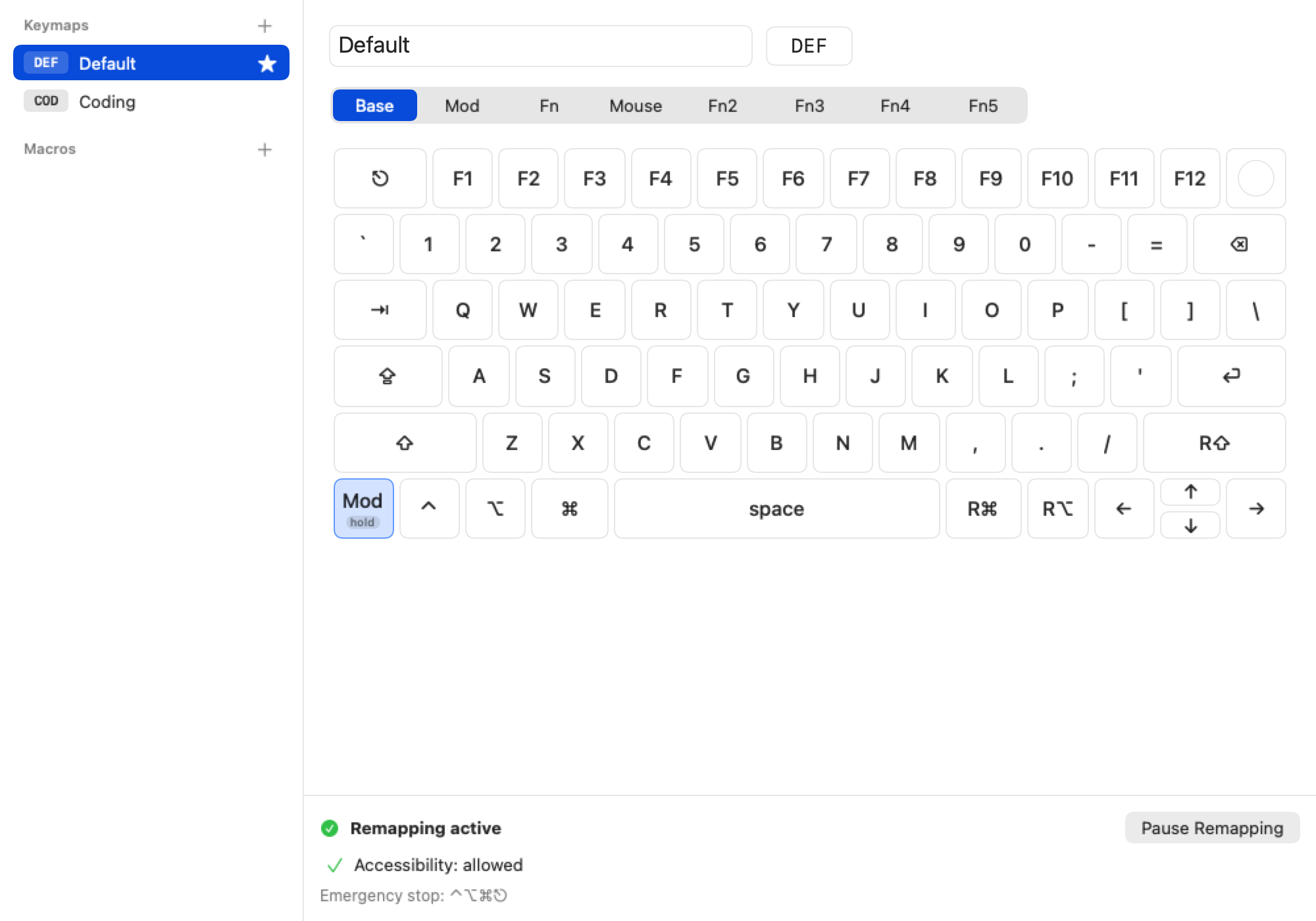
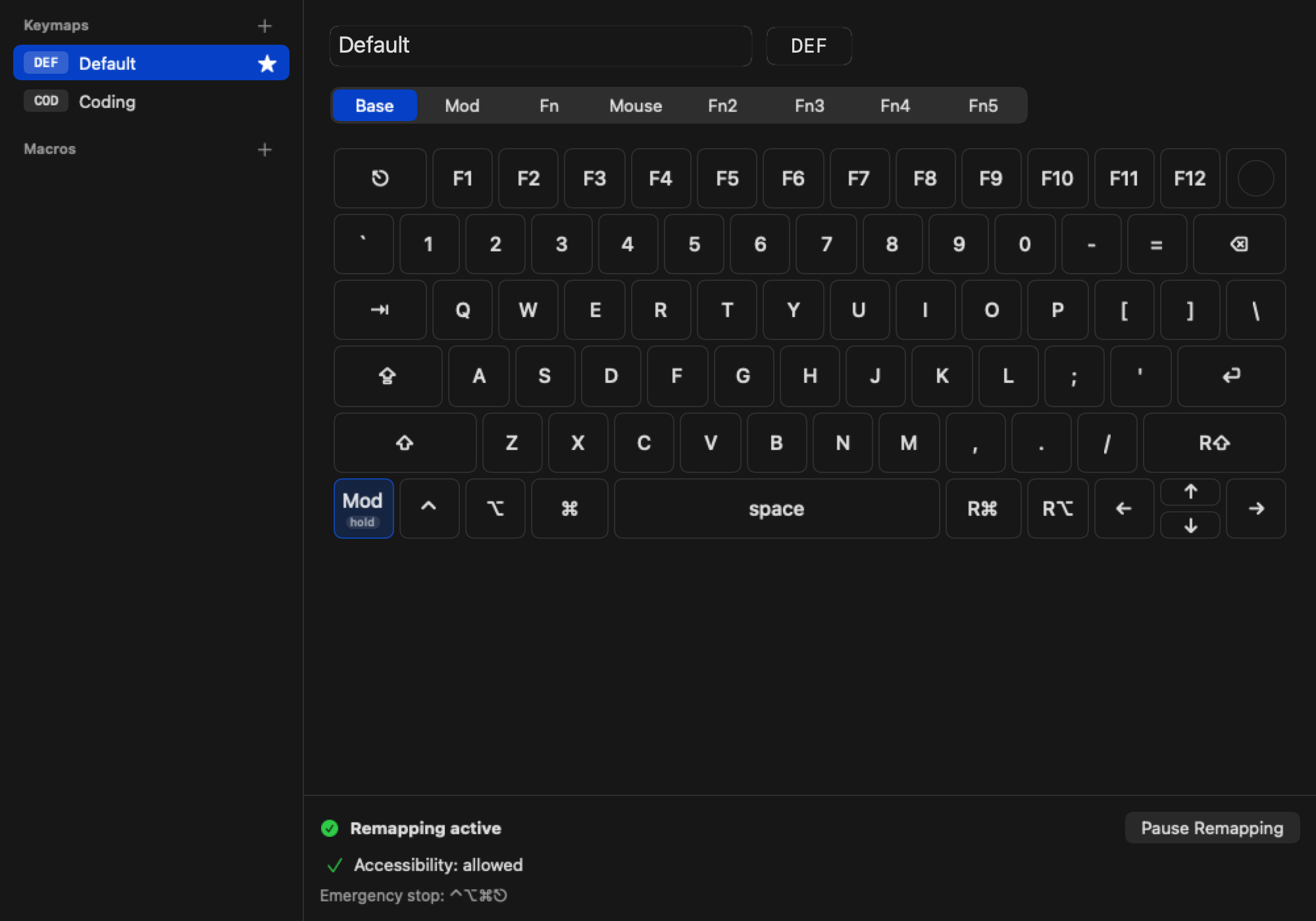
A keymap is a set of layers. Base is what your keyboard does normally; the other layers (Mod, Fn, Mouse, Fn2 to Fn5) take over while you hold the key that switches to them. Keys a layer doesn't map fall through to the key underneath.
The KeyLayers window lists your keymaps in the sidebar. Pick a layer above the keyboard to see and edit it.
Change a key
Click a key on the layer you want to change and pick an action:
- Keypress: a key, with optional modifiers. Media keys are here too.
- Layer: switch to a layer while the key is held. Double-tap it to lock the layer; the menu bar and a short overlay show the layer you're on.
- Keymap: switch to another keymap.
- Macro: play a macro.
- None: do nothing.
To remove a mapping, click the key, choose None and leave Block the key off. The key then behaves as it normally does.
macOS Modifier Keys settings
macOS lets you remap modifier keys per keyboard (System Settings → Keyboard → Keyboard Shortcuts → Modifier Keys). Those settings don't apply while KeyLayers remaps a keyboard. Set those remaps in your keymap instead. KeyLayers points this out in its status area when it finds one.